

CatGuard
Die Tastatursperre gegen Katzen.
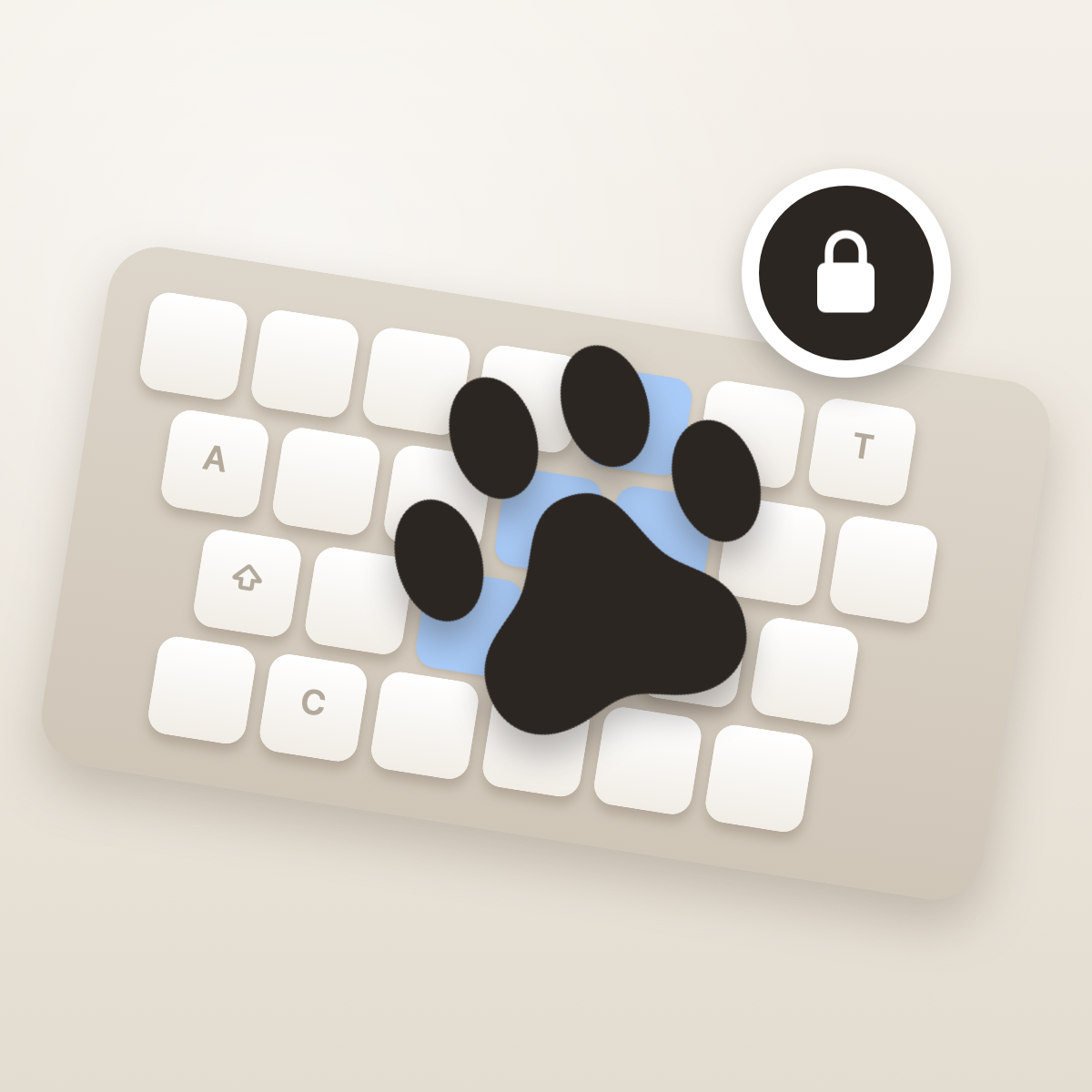
Katzen lieben warme Tastaturen. CatGuard sorgt dafür, dass sie dabei nichts anrichten: Sobald eine Pfote über die Tasten läuft, sperrt CatGuard die Tastatur – bevor eine halbe Mail verschickt, ein Dokument überschrieben oder ein Fenster geschlossen wird.
- Erkennt Pfoten, nicht Menschen: mehrere Tasten gleichzeitig wie unter einer Pfote, eine Taste, auf der die Katze sitzt, oder ein schneller Lauf über benachbarte Tasten. Normales und auch sehr schnelles Tippen bleibt unberührt.
- In einer Sekunde entsperrt: Umschalttaste halten und C, A, T tippen – das schafft keine Katze. Oder im Sperrbildschirm die Entsperren-Taste kurz gedrückt halten.
- Sicher: Nach einer einstellbaren Zeit gibt CatGuard die Tastatur von selbst frei, und beim Beenden sofort.
- Unauffällig: lebt als kleines Symbol in der Menüleiste; Schutz pausieren mit einem Klick, ein kurzer Ton beim Sperren lässt sich abschalten.
- Fein einstellbar: Jede Erkennung lässt sich einzeln an- und abschalten und in ihrer Empfindlichkeit anpassen.
- Privat: Tastendrücke werden nur im Arbeitsspeicher ausgewertet, nichts wird gespeichert, keine Internetverbindung.
Für Macs ab macOS 13, auf Deutsch und Englisch.
Datenschutzerklärung für die App „CatGuard“
Stand: 16. Oktober 2026
1. Verantwortlicher
David Fischer & Sebastian Scholz GbR
Rudolf-Schwarz-Straße 26
10407 Berlin
Deutschland
E-Mail: info@design-chirurgen.com
Telefon: +49 178 1857011
2. Kurz gesagt
CatGuard erfasst, speichert und überträgt keine personenbezogenen Daten. Die App stellt keine Verbindung ins Internet her und enthält keine Analyse-, Werbe- oder Tracking-Dienste und keine Programmbausteine anderer Anbieter.
3. Was die App verarbeitet
Damit CatGuard eine Katze auf der Tastatur erkennen kann, wertet die App Tastatur-Ereignisse aus, und zwar nur die Position der gedrückten Taste und den Zeitpunkt. Das geschieht ausschließlich im Arbeitsspeicher deines Macs. Die App hält nur die letzten zehn Tastenpositionen samt Zeitpunkt; jeder neue Tastendruck verdrängt den ältesten, und beim Beenden ist alles verworfen. Eingaben, Texte oder Tastenfolgen werden weder gespeichert noch protokolliert noch an uns oder Dritte übermittelt.
4. Systemfreigaben
CatGuard benötigt die macOS-Freigaben „Bedienungshilfen“ und „Eingabeüberwachung“. Sie dienen ausschließlich dazu, Katzen zu erkennen und die Tastatur bei Bedarf anzuhalten. Du kannst sie jederzeit in den Systemeinstellungen unter „Datenschutz & Sicherheit“ widerrufen.
5. Einstellungen
Deine Einstellungen, etwa Empfindlichkeit, Töne und automatische Freigabe, speichert die App lokal auf deinem Mac. Sie verlassen das Gerät nicht, und wir haben keinen Zugriff darauf.
6. Download
Wenn du CatGuard über den Mac App Store lädst, verarbeitet Apple dabei Daten in eigener Verantwortung nach der Datenschutzrichtlinie von Apple. Wir erhalten von Apple nur zusammengefasste Zahlen ohne Bezug zu deiner Person.
7. Wenn du uns schreibst
Schreibst du uns eine E-Mail, verarbeiten wir deine E-Mail-Adresse und deine Nachricht, um zu antworten (Art. 6 Abs. 1 lit. b bzw. f DSGVO), und löschen sie, wenn die Anfrage erledigt ist und keine gesetzlichen Aufbewahrungspflichten bestehen.
8. Deine Rechte
Du hast das Recht auf Auskunft, Berichtigung, Löschung, Einschränkung der Verarbeitung, Datenübertragbarkeit und Widerspruch (Art. 15 bis 21 DSGVO) sowie das Recht, dich bei einer Datenschutz-Aufsichtsbehörde zu beschweren (Art. 77 DSGVO). Für uns zuständig ist die Berliner Beauftragte für Datenschutz und Informationsfreiheit, Alt-Moabit 59–61, 10555 Berlin.
9. Diese Website
Für die Website design-chirurgen.com selbst gilt deren Datenschutzerklärung: https://design-chirurgen.com/impressum/#datenschutz
Nutzungsbedingungen für die App „CatGuard“
Stand: 16. Oktober 2026
1. Anbieter und Geltung
CatGuard wird angeboten von der David Fischer & Sebastian Scholz GbR, Rudolf-Schwarz-Straße 26, 10407 Berlin, Deutschland („wir“). Beim Bezug über den Mac App Store gilt zusätzlich die Standard-Lizenzvereinbarung von Apple (Apple Standard EULA); Apple ist nicht Vertragspartner dieser Bedingungen.
2. Was CatGuard leistet
CatGuard erkennt typische Katzen-Muster auf der Tastatur und hält Tastendrücke zurück, bis du entsperrst. Eine Erkennung ist nie vollkommen: In seltenen Fällen kann CatGuard eine Katze übersehen oder schnelles Tippen für eine Katze halten. Speichere wichtige Arbeit deshalb wie gewohnt.
3. Rechte an der App
Alle Rechte an CatGuard liegen bei uns. Du darfst die App für eigene Zwecke nutzen, aber nicht kopieren, verändern, zurückentwickeln oder weitergeben, soweit das Gesetz es nicht ausdrücklich erlaubt.
4. Haftung
Wir haften unbeschränkt bei Vorsatz und grober Fahrlässigkeit, bei Verletzung von Leben, Körper oder Gesundheit und nach dem Produkthaftungsgesetz. Bei leichter Fahrlässigkeit haften wir nur für die Verletzung wesentlicher Pflichten, deren Erfüllung die Nutzung erst ermöglicht und auf die du vertrauen darfst, und nur für den typischen, vorhersehbaren Schaden. Im Übrigen ist die Haftung ausgeschlossen. Deine gesetzlichen Rechte als Verbraucher bleiben unberührt.
5. Recht
Es gilt deutsches Recht. Wenn du Verbraucher bist, bleiben zwingende Schutzvorschriften des Landes, in dem du lebst, unberührt. Wir sind nicht bereit und nicht verpflichtet, an Streitbeilegungsverfahren vor einer Verbraucherschlichtungsstelle teilzunehmen.
Impressum
Angaben gemäß § 5 DDG
David Fischer & Sebastian Scholz GbR
Rudolf-Schwarz-Straße 26
10407 Berlin
Deutschland
Vertreten durch die Gesellschafter David Fischer und Sebastian Scholz
Kontakt
E-Mail: info@design-chirurgen.com
Telefon: +49 178 1857011
Umsatzsteuer-Identifikationsnummer gemäß § 27a UStG: DE309266492
Verbraucherstreitbeilegung: Wir sind nicht bereit und nicht verpflichtet, an Streitbeilegungsverfahren vor einer Verbraucherschlichtungsstelle teilzunehmen.
Hilfe und Kontakt
Einrichtung
CatGuard öffnen; eine kurze Einführung erklärt alles und führt durch die beiden Freigaben „Bedienungshilfen“ und „Eingabeüberwachung“. Danach lebt CatGuard als Pfoten-Symbol in der Menüleiste; ein Symbol im Dock gibt es nicht.
Häufige Fragen
Wie entsperre ich die Tastatur?
Umschalttaste halten und C, A, T tippen. Oder im Sperrbildschirm die Entsperren-Taste etwa eine Sekunde lang gedrückt halten; ein einfacher Klick reicht bewusst nicht, damit auch eine Pfote auf dem Trackpad nichts aufhebt.
Die Tastatur bleibt gesperrt.
CatGuard gibt die Tastatur nach der eingestellten Zeit (Einstellung „Automatisch entsperren“, Standard: 5 Minuten) von selbst frei. Beendest du CatGuard über das Menüleisten-Symbol, ist die Tastatur sofort wieder frei.
CatGuard sperrt, obwohl keine Katze da war.
In den Einstellungen lässt sich jede Erkennung einzeln abschalten und in ihrer Empfindlichkeit anpassen. Für eine Weile ganz ohne Schutz: im Menüleisten-Symbol „Pausieren“ wählen.
CatGuard erkennt nichts.
Prüfe in den Systemeinstellungen unter „Datenschutz & Sicherheit“, ob CatGuard bei „Bedienungshilfen“ und „Eingabeüberwachung“ eingeschaltet ist. Klappt es danach noch nicht, CatGuard einmal beenden und neu öffnen.
Wie entferne ich CatGuard?
CatGuard beenden, aus dem Ordner „Programme“ löschen und in den Systemeinstellungen unter „Datenschutz & Sicherheit“ aus den Listen „Bedienungshilfen“ und „Eingabeüberwachung“ entfernen.
Kontakt
Fragen, Fehler, Wünsche: info@design-chirurgen.com. Schreib uns bitte, welchen Mac und welche macOS-Version du hast.
CatGuard
The keyboard lock for cat owners.
Cats love warm keyboards. CatGuard makes sure they can't do any harm: the moment a paw walks across the keys, CatGuard locks the keyboard – before half an email is sent, a document is overwritten or a window is closed.
- Spots paws, not people: several keys at once like under a paw, a key your cat is sitting on, or a quick run across neighboring keys. Regular and even very fast typing is left alone.
- Unlocked in a second: hold Shift and type C, A, T – no cat can do that. Or press and hold the unlock button on the lock screen.
- Safe: CatGuard releases the keyboard on its own after a time you choose, and immediately when you quit.
- Unobtrusive: lives as a small icon in the menu bar; pause protection with one click, and the short lock sound can be turned off.
- Fine-tune everything: each detection can be switched on or off and adjusted individually.
- Private: keystrokes are evaluated in memory only, nothing is stored, no internet connection.
For Macs running macOS 13 or later, in English and German.
Privacy Policy for the App “CatGuard”
Last updated: 16 October 2026
If this English version and the German version differ, the German version applies.
1. Controller
David Fischer & Sebastian Scholz GbR
Rudolf-Schwarz-Straße 26
10407 Berlin
Germany
Email: info@design-chirurgen.com
Phone: +49 178 1857011
2. In short
CatGuard does not collect, store or transmit any personal data. The app never connects to the internet and contains no analytics, advertising or tracking services and no third-party code.
3. What the app processes
To recognize a cat on the keyboard, CatGuard evaluates keyboard events – only the position of the pressed key and its timing. This happens solely in your Mac's memory. The app keeps only the last ten key positions with their timing; each new keystroke replaces the oldest one, and everything is discarded when the app quits. No input, text or key sequences are stored, logged or sent to us or anyone else.
4. System permissions
CatGuard requires the macOS permissions “Accessibility” and “Input Monitoring”. They are used only to recognize cats and to hold back the keyboard when needed. You can revoke them at any time in System Settings under “Privacy & Security”.
5. Settings
Your settings, such as sensitivity, sounds and automatic release, are stored locally on your Mac. They never leave the device, and we have no access to them.
6. Download
When you download CatGuard from the Mac App Store, Apple processes data under its own responsibility according to Apple's privacy policy. Apple only provides us with aggregated figures that do not identify you.
7. If you contact us
If you email us, we process your email address and message to reply (Art. 6(1)(b) or (f) GDPR) and delete them once the request is settled, unless legal retention obligations apply.
8. Your rights
You have the right of access, rectification, erasure, restriction of processing, data portability and objection (Art. 15 to 21 GDPR) and the right to lodge a complaint with a data protection supervisory authority (Art. 77 GDPR). The authority responsible for us is the Berliner Beauftragte für Datenschutz und Informationsfreiheit, Alt-Moabit 59–61, 10555 Berlin, Germany.
9. This website
The privacy policy of design-chirurgen.com applies to the website itself: https://design-chirurgen.com/impressum/#datenschutz
Terms of Use for the App “CatGuard”
Last updated: 16 October 2026
If this English version and the German version differ, the German version applies.
1. Provider and scope
CatGuard is provided by David Fischer & Sebastian Scholz GbR, Rudolf-Schwarz-Straße 26, 10407 Berlin, Germany (“we”). If you get it from the Mac App Store, Apple's Standard Licensed Application End User License Agreement (Standard EULA) also applies; Apple is not a party to these terms.
2. What CatGuard does
CatGuard recognizes typical cat patterns on the keyboard and holds back keystrokes until you unlock. No detection is perfect: in rare cases CatGuard may miss a cat or mistake fast typing for one. So keep saving important work as usual.
3. Rights in the app
All rights in CatGuard belong to us. You may use the app for your own purposes, but you may not copy, modify, reverse-engineer or distribute it, except where the law expressly allows it.
4. Liability
We are liable without limitation for intent and gross negligence, for injury to life, body or health and under the German Product Liability Act. For slight negligence we are only liable for breaches of essential obligations that make the use possible in the first place and on which you may rely, and only for typical, foreseeable damage. Otherwise liability is excluded. Your statutory rights as a consumer remain unaffected.
5. Law
German law applies. If you are a consumer, mandatory consumer protection rules of the country where you live remain unaffected. We are neither willing nor obliged to take part in dispute resolution proceedings before a consumer arbitration board.
Legal Notice
Information in accordance with Section 5 of the German Digital Services Act (DDG)
David Fischer & Sebastian Scholz GbR
Rudolf-Schwarz-Straße 26
10407 Berlin
Germany
Represented by its partners David Fischer and Sebastian Scholz
Contact
Email: info@design-chirurgen.com
Phone: +49 178 1857011
VAT identification number in accordance with Section 27a of the German VAT Act: DE309266492
Consumer dispute resolution: We are neither willing nor obliged to take part in dispute resolution proceedings before a consumer arbitration board.
Help and Contact
Setup
Open CatGuard; a short introduction explains everything and guides you through the two permissions “Accessibility” and “Input Monitoring”. After that, CatGuard lives as a paw icon in the menu bar; there is no Dock icon.
FAQ
How do I unlock the keyboard?
Hold Shift and type C, A, T. Or press and hold the unlock button on the lock screen for about a second; a simple click deliberately isn't enough, so a paw on the trackpad can't unlock either.
The keyboard stays locked.
CatGuard releases the keyboard on its own after the time you set (“Unlock automatically”, default: 5 minutes). If you quit CatGuard from its menu bar icon, the keyboard is free immediately.
CatGuard locked although there was no cat.
In Settings, each detection can be switched off or adjusted individually. To go without protection for a while, choose “Pause” from the menu bar icon.
CatGuard doesn't detect anything.
Check in System Settings under “Privacy & Security” that CatGuard is switched on for both “Accessibility” and “Input Monitoring”. If it still doesn't work, quit CatGuard and open it again.
How do I remove CatGuard?
Quit CatGuard, delete it from Applications and remove it from the “Accessibility” and “Input Monitoring” lists in System Settings under “Privacy & Security”.
Contact
Questions, bugs, ideas: info@design-chirurgen.com. Please tell us your Mac model and macOS version.